Sunday, September 8, 2013

How to do a factory reset on the Nokia N8


Follow these simple steps to perform a factory reset on the Nokia N8:


       1. Go into the Nokia N8’s Main Menu
       2. Select, Settings
       3. Then go into Phone
       4. Scroll down to Phone mgmt.
       5. Select Factory Settings
       6. Now you’ll be presented with two options: restore and delete data and restore.
       7. Select Delete Data and Restore
       8. The phone will now reset and all the data will be wiped

Sunday, August 25, 2013

How to share my iPhone 3GS Internet connection with a computer

1. Connect the Apple iPhone 3GS to the computer using the USB cable.


2. Touch Settings.


3. Touch General.


4. Touch Cellular.


5. Scroll to and touch Set Up Personal Hotspot


6. Touch Personal Hotspot.


7. If you see this screen, touch USB Only.


8. The Apple iPhone 3GS is now tethered.


9. On the computer, wait for the device drivers to install then click Home network.


10. Wait while the computer automatically applies the settings and connects to the network.


11. Setup is complete. Click Close.


enjoy with your iphone internet 


Thursday, July 11, 2013

How to make Yahoo Messenger Multi-user login at the same time

Are you having more than one Yahoo id, and at the same time you want to login with multiple ids on Yahoo’s messenger? 
Well, friends this is possible without any software or any patch… 
Now you can login to your Yahoo ids in Yahoo’s messenger with multi-user facility. 
As you can see the below picture, I have logged in to my two Yahoo ids on Yahoo messengers at the same time. Using it as multi-user Messenger. This multi-user login is not restricted to only two Yahoo id, but its infinite.


Follow the below simple Steps for Multi-user login on Yahoo…


Step 1: Open Registry Editor, Go to Start –> Run, Type regedit and Press Enter.
Step 2: Navigate to HKEY_CURRENT_USER –> Software –> Yahoo –> pager –> Test


Step 3: On the right page, right-click and choose new DWORD value (create new DWORD Value).


Step 4: Right Click on New value and select Rename and rename to Plural.


Step 5: Now, Double-Click on Plural and Change Value Data From 0 to 1 and Change Base to Decimal. Now Click on OK and close regedit.


Now you have multi-user login on Yahoo. When you click on Yahoo messenger.exe, It will show Yahoo messenger window, and if you again click on Yahoo messenger.exe, It will show one more new messenger window. 

Suppose you to want to login three Yahoo id, then open Yahoo messenger for three times so that it will show three separate Yahoo messenger window.


Monday, October 8, 2012

How to Restore the Default Windows 7 Gadgets


1. Open the Control Panel (category view), then click on Appearance & Personalization. (See screenshot below)
2. Click the 'Restore desktop gadgets installed with Windows' button as highlighted in the second image. (See screenshot below)
 
3. This will bring up the Desktop Gadgets window with a message stating 'All Windows and administrator installed gadgets have been restored' (See screenshot below)

4. When finished, just close the Desktop Gadgets and Control Panel windows.
That's all there is to it

Wednesday, August 8, 2012

How to reformat your computer with windows xp


Reformatting your Windows XP computer has three main parts:
  • Reformatting the computer from your operating system CD.
  • Reinstalling the drivers that came with your computer.
  • Running Windows Update to reinstall all security updates and patches.
Please contact the ITS Help Desk (384-4357) prior to reformatting your computer if you have questions about any of these processes involved.
NOTE:  If you have a network connection, please unplug from the network before starting installation.
1. First, make sure that your computer is set to Boot to CD.  This is a different procedure depending on your computer.  When your computer first boots look for an option to enter the BIOS settings.  Under the BIOS settings find the "Boot Order" and make sure the CD-ROM is set to boot first.  If you have any problems with this please contact the ITS Help Desk at 319-384-HELP.

2. With the Windows XP CD in the CD-ROM drive, save your BIOS settings and exit.

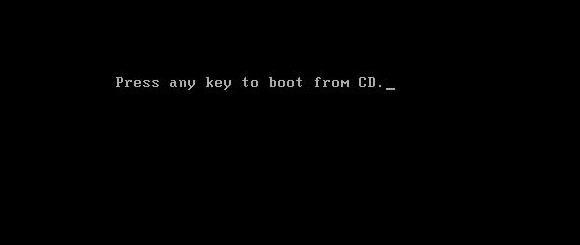
3. If you've done everything correctly you should be asked to "Press Any Key to Boot from CD".


4. After installing the necessary setup files, Windows XP will display your partitions.  Delete any existing partitions by selecting the desired partition with the arrow keys, press D to delete and then L to confirm the deletion.


5. You should now have only one option, "Unpartitioned Space".  Press Enter to install Windows XP to the unpartitioned space.


6. When asked how you would like to format the partition, select "Format using the NTFS file system".


7. After the partition is formatted, Windows XP will begin installation.  The computer will reboot.  While the computer is rebooting, please do not touch any keys.  From now on the screens will look like the following:


8. Enter your product key.  If you purchased Windows XP from the IMU Bookstore, the product key will be located on the back of the sleeve your CD came in.  If you are reformatting using a Windows XP CD that came with your computer, the product key may be located on a sticker somewhere on your computer case.


9. When asked for Network Settings, choose "Typical Settings".


 10. Windows XP will now complete installation.  Upon completion you will need to re-install the drivers for your hardware (Modem, Sound, Video, etc).  Many PC companies such as Dell, Gateway, and HP will include a "Driver Installation CD" with the computer.  Simply insert the CD and follow the instructions.  Otherwise, you can download current drivers from many manufacturer's support web sites. If you have any problems please contact the ITS Help Desk at 319-384-HELP.

11. Next turn on the Internet Connection Firewall.  Instructions to turn on the Internet Connection Firewall 

12. Reconnect your computer to the Network.

13. Run Windows Update by opening Internet Explorer,  then clicking on Tools -> Windows Update.  Follow the on-screen instructions for installing critical updates.

14. Restart your computer.